Searching for a Shipment Declaration

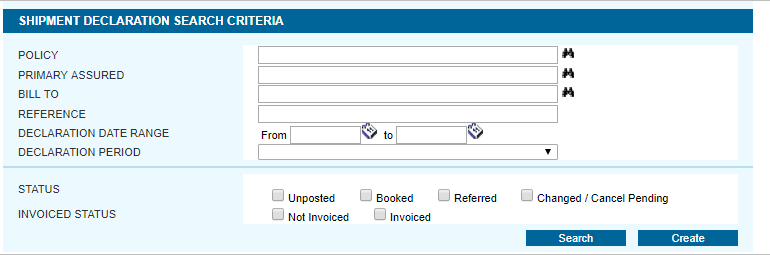
Each shipment declaration can be considered a folder, containing the shipments or bulk information to be submitted for that declaration. The Shipment Declarations Search screen is used to find the declaration, and the individual shipments and bulk information can be accessed from there.

To find an individual shipment directly, use the Query/List search and select Declarations as the Type Of Shipment.

Steps

  1. In the main menu bar, open the Shipments menu and click Declarations. The Shipment Declaration Search Criteria page opens.

  2. Enter any combination of search options, or leave all fields blank and click Search to view all available declaration periods. All fields are optional.

    Policy

    Enter all or part of a policy name and click the lookup icon to select a policy.

    Primary Assured

    Enter all or part of the primary assured name. The lookup may be used to select it from the system.

    Bill-To

    Enter all or part of the billing company name. The lookup may be used to select it from the system.

    Reference

    To search for a specific declaration, enter the reference number for that declaration or any of the individual shipments attached to that declaration.

    Declaration Date Range

    Enter a date range to find any declarations within a certain time period. The date range of the declaration must begin and end within the selected dates or it will not be included in the results.

    Declaration Period

    To search for declarations within a certain period, select the period here.

    Status

    Select the Status to find declarations with that status. Multiple status options may be selected.

    • Unposted

    The declaration has not yet been posted, and is open for additional shipments.

    • Booked

    The declaration has been posted and booked.

    • Referred

    The declaration has been posted, but has gone into referral for review by the insuring company.

    • Changed / Cancel Pending

    Change or cancellation requests have been submitted for one or more individual shipments attached to the declaration.

    Invoiced Status

    Select the invoiced status of the declarations.

    • Not Invoiced

    The invoice has not yet been generated for the declaration.

    • Invoiced

    An invoice has been generated for the declaration.

  3. Click Search.

    The Shipment Declaration Search Results page opens above the search criteria form, allowing for changes to further refine the results. Click a link in the Period column to open that declaration.
Creating a Shipment Declaration

Each shipment declaration can be considered a folder, containing the shipments or bulk information to be submitted for that declaration.

If a policy is set up for declarations, it will define how often the declarations should be submitted. If it is set up for monthly declarations, then each declaration period will be one month. If it is set up for quarterly declarations, then each period will be three months.

Steps

  1. In the main menu bar, open the Shipments menu and click Declarations. The Shipment Declaration Search Criteria page opens.

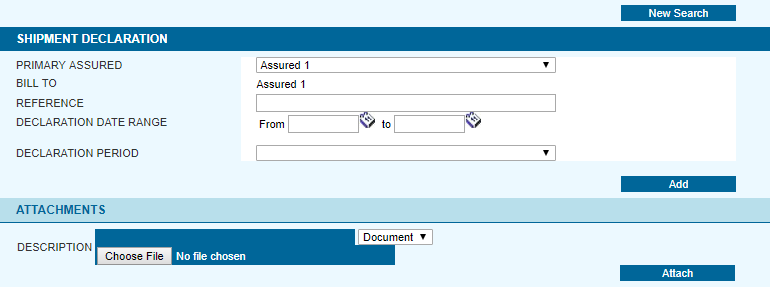
  2. Click Create. The Shipment Declaration page opens.

  3. Enter the shipment declaration information.

    Primary Assured

    The Primary Assured associated to the shipment declaration is the company responsible for submitting the shipment declaration.

    There will be a list of options when:


    • A third party, such as a freight forwarder, broker, etc. makes shipment declarations on behalf of the insurance policy's actual assured.


    • The user is insuring a shipment on behalf of a primary assured within their administrative scope. This would be any company in the system for which they have the right to issue insurance.
    Bill To The bill to party depends on the primary assured associated to the shipment. If multiple options are available, select the company that will be billed for the shipment.
    Reference This field may be used for an internal tracking number or other identifying information. The reference number can be used to search for declarations once they have been saved.
    Declaration Date Range

    Enter the declaration start and end date or use the calendar lookup to select the dates.

    All individual shipments within the declaration must have a departure on or after the From date, and on or before the To date. This date range determines the policy endorsement or renewal under which the declaration is insured.


    Note: A single declaration may not cross between policy periods. If an endorsement or renewal exists within the proposed date range, it will need to be entered as multiple declarations. Each declaration will cover the portion of the date range that falls under each policy period.

    Declaration Period Select the period to be covered by the declaration.
  4. Click Add to create the shipment declaration in the system. It is now ready for the creation of individual shipments. If another declaration exists for the same period with the same dates, a warning message will appear asking for confirmation to create the newer declaration.

    Note: Creating the declaration period does not post the declaration. It will need to be posted manually once all shipment activity has been added.
Attaching Documents to a Declaration

Documents or pictures may be attached to declarations. This can be used to provide additional information for other users viewing the declaration within the system.

How to attach a document or picture to a declaration

Steps

  1. Create a new declaration or search for and select an existing declaration.
  2. Scroll down to the bottom of the page to the Attachments section.
  3. Enter a Description of the file to be attached.

  4. Select if the file is a document or picture.
  5. Click Browse to open a standard Choose File dialogue box, and locate the file.  Select the file and click Open.
  6. Click Attach. The new file appears in the Attachments section.

How to open a document or picture attached to a declaration

Steps

  1. Click the link in the File Name column.
  2. Choose to Save or Open the file.

How to edit or delete a document or picture attached to a declaration

Steps

  1. Click the link in the Description column. The attached file will be highlighted, and the Description and Document/Picture fields will be filled in.

    Three options will be available:

    • If a file has been selected using the Browse option, click Attach to add a new file without altering the existing entry.
    • The fields can be edited, including looking up a new file with the Browse button, then click Update to change the selected entry.
    • The selected file can be removed using the Delete button.

Adding an Individual Shipment to the Declaration List

Once the declaration has been created, individual shipments can be added. The shipments may be created from templates, or entered from scratch as detailed below.

Steps

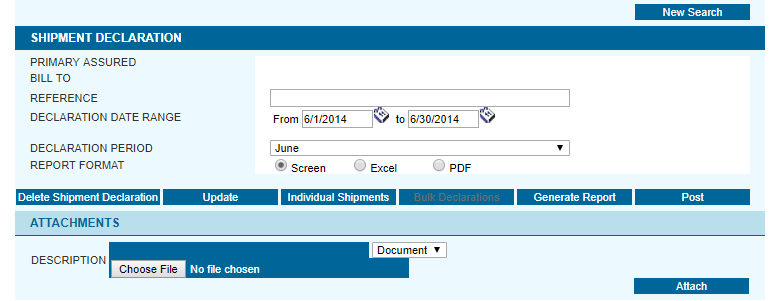
  1. Search for and select a shipment declaration. The Shipment Declaration page opens.

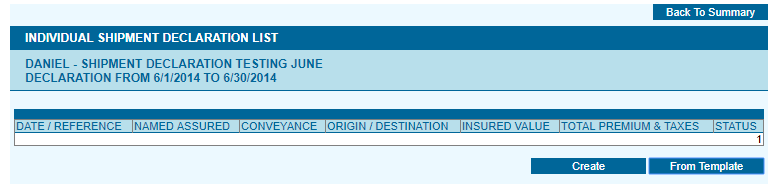
  2. Click the Individual Shipments button. The Individual Shipment Declaration List page opens.  Any shipments already attached to the declaration will be shown here.
  3. Click Create. The Shipment Detailed Information page opens.

Fill in all required fields in the shipment form.

Date of Departure The estimated date that the shipment will depart on the selected conveyance. Enter the date or select it from the calendar lookup. Only dates within the Declaration Date Range will be accepted.
  The effective policy period is shown to the right of the Date of Departure field. If the date is not within the current policy period, the shipment will need to go into referral.
Named Assured The named assured is the beneficiary of the insurance coverage. Select an existing named assured or select New Named Assured and enter the necessary information.
 

Note: The ability to enter, edit, or save a new named assured depends on user account rights.

Once the information has been entered, the named assured may be saved for future use or made available to other users.

  • Add New Assured

If the named assured was selected from the lookup, this option will save any changes that were made. If a new named assured was entered, this option adds the named assured to the lookup for future shipments.

The named assured will only be available to your account, unless it is shared using the following option(s).

  • Allow Other Assureds Access to this Named Insured
Makes the named assured available to other users within your office who have the rights to view shared information.
  • Show to all in organization
Makes the named assured available to users connected to your company who have the rights to view shared information. This includes parent branches and any subsidiaries.
Reference Number This field may be used for an internal tracking number or other identifying information.  This field can be used to search for templates or declarations.

Cargo information: Select the type of cargo, how it is being shipped, and the coverage.

Commodity Select the commodity being shipped. This menu includes all insured interests available in the active policy. If only one commodity is available, it is displayed automatically.
Packing/Shipment Method Select the packing/shipment method used for the shipment. If only one packing/shipment method is available, it is displayed automatically.
  The menu provides options only if the insurance coverage, premium charged or other conditions or exclusions vary based on the packing/shipment methods available for the selected commodity.
Coverage Option The insurance policy may provide a choice of insuring terms or coverage options for the selected commodity. The insuring conditions vary according to coverage option, and in some cases the premium charged also varies. Select the coverage option to be associated to the selected commodity. If only one coverage option is available, it is selected automatically.


The menu provides options only if the insurance coverage, premium charged or other conditions or exclusions vary based on the coverage options for the selected commodity.

Insured Value: This section is used to declare the sum for which the cargo is to be insured. Depending on how the policy is set up, some or all of the following may have to be entered:

Currency Select the currency in which the values are declared.
Invoice Amount The actual value of the goods or the value of the goods as per the commercial invoice.
Duty Insured Value The amount of duties and taxes levied on the shipment, if this amount is to be insured.
Freight & Other Expenses The total of all freight and other expenses related to the shipment to be insured (include the insurance premium cost to insure CIF value).
CIF Markup The percentage of markup to be applied on the total of all items (excluding the duty and tax amount).
Total Sum Insured The system will calculate the total of the previous fields, and display it here.
Insured Value If the detailed fields listed above are not required, this field will be provided instead. Enter the full insured value.

For any questions about what amounts are insurable by the policy or how to calculate any of the above fields, refer to the insurance policy's Valuation Clause, available using the link to the right of the Insured Value section, or contact your insurance representative.

Conveyance: Provide the specific information about how the cargo is being transported.

Select the conveyance from the available options, as defined in the policy.

With Transshipment Check this box if the shipment involves more than one connecting conveyance. This box only appears if the policy calls for an additional premium to be levied on transshipments.
Vessel

Type all or part of the vessel name and use the lookup to search the vessel database. The database lists only those vessels that are listed as "Live" and "In Commission".


This field is directly tied to the Carrier field. When a vessel is selected, the registered carrier is automatically entered in the Carrier field. If the carrier is known, and the vessel is unknown, selecting the carrier first may facilitate the vessel selection.

  If the required vessel cannot be found in the lookup list, leave the Carrier field blank and perform the search again. The vessel may be registered under a different carrier. If the vessel is still not found, select the Override Vessel Validation box to bypass the forced lookup and generate a referral to the insurance representative.
  In some cases, the enabled policy may not require that the carrier or vessel information be selected from the lookup. However, the manual entry of a carrier or vessel is still mandatory.
Carrier Since this functionality is directly tied to the Vessel field, when a carrier is chosen from the lookup, the available vessels to pick from are restricted to those that are registered under the selected carrier. If the vessel is known and the carrier is unknown, selecting the vessel first may facilitate the carrier selection.
  If the required carrier cannot be found in the lookup list, select the Override Vessel Validation box to bypass the forced lookup and generate a referral to the insurance representative.
Voyage Enter a voyage number, flight number, or a transit reference number, if necessary.
Override Vessel Validation

If the vessel and /or carrier field entries must be looked up from the system, however there are no choices that match the required names, then this option may be checked to override the lookups. Once this box is checked, any names may be entered into the Vessel and Carrier fields, without using the lookups.

The shipment will go into referral so that the vessel and carrier information may be reviewed by the insuring company, and approved for booking.

Route information: Enter the locations for the cargo origin and destination, as well as the ports or airports where the cargo was loaded and unloaded from the chosen transport.

Origin Information Specifies the location where the insurance coverage starts.
  • Country
Select the country where the insurance coverage starts. The drop-down lists all active countries in the world, including aliases.
  • State/Province/Other
Some countries may require the selection of a state, province or other sub-division if the policy is set up to exclude certain parts of the country from being insured.
  • City/Place
Enter the city or place where the insurance takes effect.
Place of Loading Specifies the location where the cargo is loaded onto the chosen transport.
  • Country
Select the country in which the port or airport of loading is located. The drop-down lists all active countries including aliases.
  • Loading Facility
Depending on the selected conveyance, a port or airport may need to be selected from the lookup.
  • No Risk Prior to Loading
Check this box if the coverage is to begin only when the cargo is loaded onto the specified conveyance.

Final Destination

Specifies the location where the insurance coverage ends.
  • Country
Select the country where the insurance coverage ends. The drop-down lists all active countries in the world, including aliases.
  • State/Province/Other
Some countries may require the selection of a state, province or other sub-division if the policy is set up to exclude certain parts of the country from being insured.
  • City/Place
Enter the city or place where the insurance coverage ends.
Place of Discharge Specifies the location where the cargo is unloaded from the chosen transport.
  • Country
Select the country in which the port or airport of unloading is located. The drop-down lists all active countries including aliases.
  • Discharge Facility
Depending on the selected conveyance, a port or airport may need to be selected from the lookup.
  • No Risk After Discharge
Check this box if the coverage is to cease at the time the cargo is unloaded from the primary conveyance.

Full Description of Cargo: Provide a complete description of the cargo.

  1. Click Add. The shipment will be added to the declaration, and the status can be viewed from the Individual Shipment Declaration List.
  2. Click Create or From Template to add additional shipments, or click Back To Summary to return to the Shipment Declaration window.

Changing or Deleting a Shipment Declaration

If a declaration is created with incorrect information, or if multiple declarations are mistakenly created for the same period, it may be possible to edit or even delete the declaration.

If a declaration has not yet been posted, it can be edited and saved, or it can be deleted along with all shipments and information attached to it.

If a declaration has been posted, it cannot be deleted. However, it can be edited if the user has the proper rights.

How to change a shipment declaration

Steps

  1. Search for and select the shipment declaration. The Shipment Declaration page opens.

  2. Make the necessary changes to the declaration details.
  3. Click Update. The declaration is saved with the new information.

How to delete a shipment declaration

Steps

  1. Search for and select an unposted declaration. The Shipment Declaration page opens.

  2. Click Delete Shipment Declaration. The declaration is deleted, along with all shipments and bulk declaration information attached to it.

Changing, Deleting, or Cancelling an Individual Shipment in a Declaration

If an error is made on an individual shipment, duplicate shipments are added, or if the actual shipment is changed or cancelled, it may be possible to change or delete the individual shipment within a declaration.

If a declaration has not yet been posted, any individual shipments attached to it can be edited or deleted as necessary.

If a declaration has been posted, the individual shipments cannot be deleted. However, they may be edited or cancelled if the user has the proper rights.

How to change an individual shipment in a declaration

Steps

  1. Search for and select the declaration containing the shipment to be changed. The Shipment Declaration page opens.

    Note: The individual shipment may also be found using the Query/List search page. Check the box for Declarations as the Type Of Shipment. This will only show shipments from posted declarations.

  2. In the Shipment Declaration page, click Individual Shipments. The Individual Shipment Declaration List page appears.

  3. Select a shipment by clicking the link in the Date/Reference column. The Individual Shipment Declaration Entry page opens.
  4. Make the necessary changes to the shipment details.
  5. Click Update. The shipment is saved with the new information.

How to delete an individual shipment in a declaration

Steps

  1. Search for and select the unposted declaration containing the shipment to be deleted. The Shipment Declaration page opens.
  2. In the Shipment Declaration page, click Individual Shipments. The Individual Shipment Declaration List page appears.

  3. Select a shipment by clicking the link in the Date/Reference column. The Individual Shipment Declaration Entry page opens.
  4. Click Delete. The shipment is deleted from the system.

How to cancel an individual shipment in a declaration

Steps

  1. Search for and select the posted declaration containing the shipment to be cancelled. The Shipment Declaration page opens.

    Note: The individual shipment may also be found using the Query/List search page. Check the box for Declarations as the Type Of Shipment.

  2. In the Shipment Declaration page, click Individual Shipments. The Individual Shipment Declaration List page appears.

  3. Select a shipment by clicking the link in the Date/Reference column. The Individual Shipment Declaration Entry page opens.
  4. Click Cancel. The shipment is cancelled, but is kept in the system for future reference.